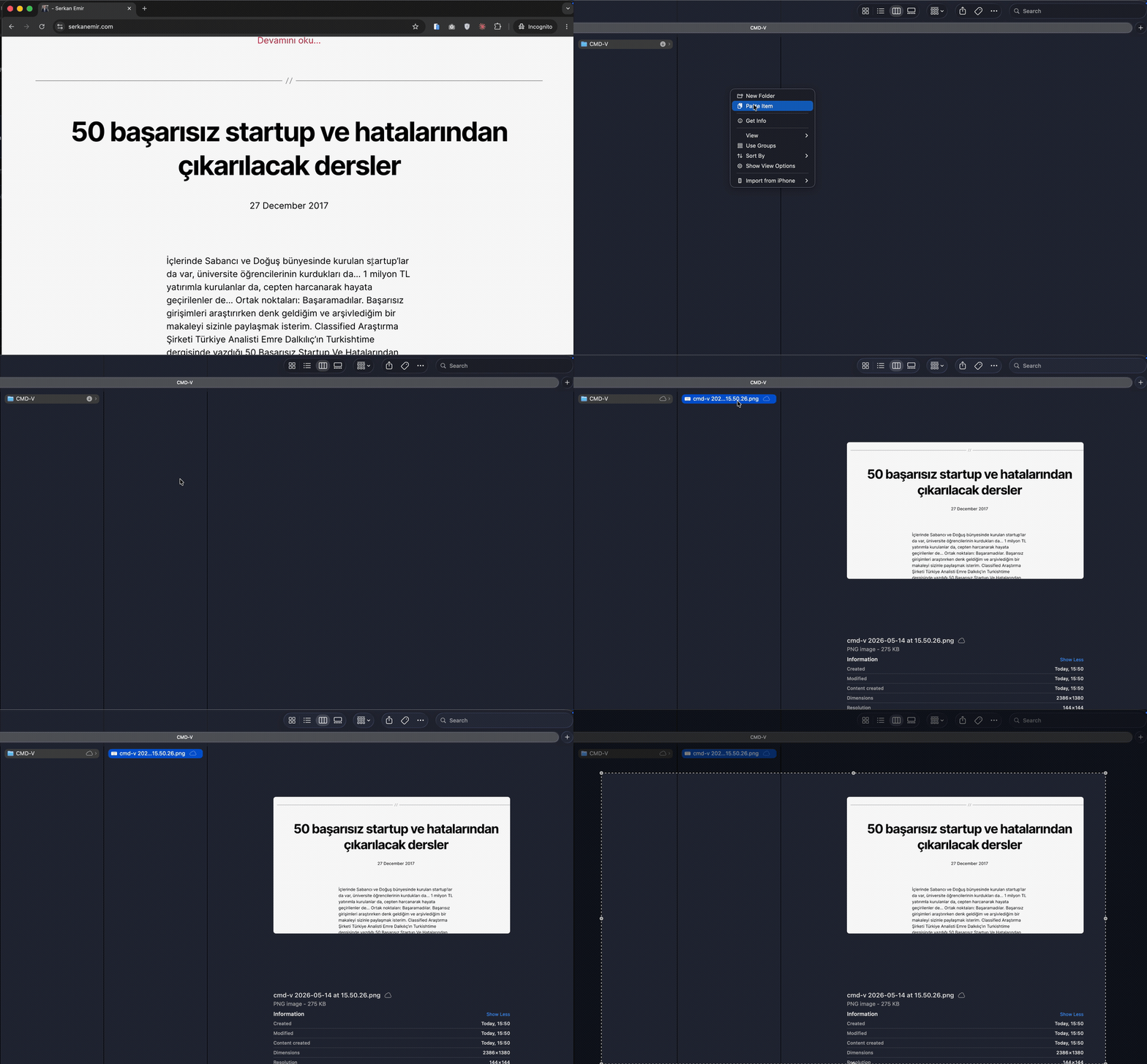
If you’ve ever taken a screenshot on a Mac, copied an image from a webpage, or grabbed something from a design tool — then tried to paste it as a file into a Finder folder — you already know the problem. macOS Finder doesn’t accept clipboard images. You hit Cmd+V and nothing happens.
This is a fifteen-year-old papercut. I finally got tired of it and built a small open-source helper called cmd-v that closes the gap. This post explains why the problem exists, what the existing workarounds get wrong, and how cmd-v fits in.
The Problem: Why Finder Won’t Paste Clipboard Images
On Windows, Ctrl+V in File Explorer takes whatever’s on the clipboard — an image from a browser, a screenshot, anything — and writes it to the current folder as a new file. On macOS, this just doesn’t work in Finder. You press Cmd+V and nothing happens.
The reason is historical and structural. macOS’s pasteboard (NSPasteboard) distinguishes between image data (raw PNG/TIFF bytes) and file references (URLs pointing to existing files on disk). Finder’s paste behavior expects file references. Screenshots and copied web images live on the clipboard as image data, never as files — so Finder has nothing to paste.
Apple has had over a decade to fix this in macOS and chose not to. So the community has built workarounds, none of them great.
How People Solve This Today (and Why It’s Annoying)
Here’s the honest comparison of every approach I tried before building cmd-v:
| Approach | Steps | Keyboard-native? | Setup overhead |
|---|---|---|---|
| Preview.app + Cmd+N | Open Preview → New from Clipboard → Cmd+S → name file → choose folder → Save | No | Zero |
| Automator Quick Action | Right-click in Finder → Services → Paste Image | Partial | High (script + hotkey) |
| pngpaste CLI | pngpaste ~/Desktop/foo.png in Terminal | Terminal only | Low |
| Keyboard Maestro macro | Custom macro | Yes | Requires paid app |
| cmd-v | Cmd+V in Finder | Yes, native | One-time brew install |
The Preview workflow is what Apple support tells you to do, and it works, but it’s six steps where there should be one. Automator solutions require you to script and bind a hotkey — fine for power users, friction for everyone else. pngpaste is great but only works in a terminal. Keyboard Maestro is excellent but it’s a $36 license for one tiny job.
None of these give you the thing you actually want, which is: take a screenshot, open a Finder window, press Cmd+V, and have a PNG appear.
What cmd-v Does
cmd-v is a ~950-line Swift command-line helper. It runs as a per-user background service (LaunchAgent) and watches the system pasteboard. When it sees image data on the clipboard with no associated file reference, it:
- Writes the image as a PNG to a private cache directory (
~/Library/Caches/cmd-v/ClipboardImages, mode0700) - Adds the file URL of that PNG to the existing pasteboard
- Lets Finder use its normal
Cmd+Vbehavior to drop the file into the current folder
That’s the whole trick. Finder doesn’t know cmd-v exists. It just gets a clipboard with a file reference on it and does what it’s always done.
Install (Homebrew)
brew tap serkanemir/tap
brew install cmd-v
brew services start cmd-v
That’s it. The helper is now running. Take a screenshot (Ctrl+Cmd+Shift+4), open a Finder folder, press Cmd+V. You get a PNG.
How to Use cmd-v
- Copy an image to your clipboard — screenshot, drag-from-browser, anything that puts raw image data on the pasteboard.
- Open the Finder folder where you want the file.
- Press
Cmd+V.
There’s no UI, no menu bar icon, no preferences window. If it’s working, you forget it exists.
You can check it with cmd-v status or cmd-v doctor. To stop it, brew services stop cmd-v.
Privacy and Security
Clipboard data is sensitive — passwords, private screenshots, internal documents. Any tool that watches the pasteboard has to be honest about its trust posture, so cmd-v is built with deliberate constraints:
- No network calls. Ever. Verified at build time.
- No telemetry, analytics, or accounts.
- No clipboard history. Only the current prepared image exists on disk, and old cache entries are pruned automatically.
- No Accessibility permission, no keyboard hook, no Finder automation.
- No third-party dependencies. The Swift package ships with zero dependencies.
- Generated PNGs are written with
0600permissions, in a0700directory. - Images larger than 100 MB are rejected before they ever hit disk.
The full threat model and a pre-release security review are committed in the repo under docs/.
Compatibility
- macOS 12 Monterey deployment target.
- Tested on macOS 15 (GitHub Actions) and macOS 26.4.1 locally.
- Builds natively on both Apple Silicon and Intel.
- Older macOS versions are likely to work but aren’t verified.
A signed and notarized binary is planned for v0.2.0. Until then, the Homebrew tap builds locally from source.
Open Source
cmd-v is MIT-licensed. The full source, threat model, and contribution guide live at github.com/serkanemir/cmd-v. Stars, issues, and pull requests are welcome — especially bug reports from unusual clipboard sources (apps that put weird MIME types on the pasteboard).
FAQ
Why can’t I paste an image in Finder on Mac?
Finder’s paste action only accepts file references, not raw image data. Screenshots and copied web images live on the clipboard as image data, so Finder has nothing to paste. This is by design in macOS and Apple hasn’t changed it.
How do I save a clipboard image as a file on macOS without extra tools?
Open Preview, press Cmd+N (File → New from Clipboard), then Cmd+S to save. It works but takes six steps. cmd-v collapses this to a single Cmd+V.
Is cmd-v the same as pngpaste?
No. pngpaste is a CLI tool that writes the clipboard image to a path you specify in a terminal. It can’t be used from Finder. cmd-v is designed specifically for the Finder Cmd+V flow.
Does cmd-v record my clipboard history?
No. It only keeps the most recent prepared image so Finder can paste it. Older cache files are pruned automatically.
Does it need Accessibility permission?
No. cmd-v doesn’t intercept keystrokes or automate Finder. It only watches the pasteboard change count, which doesn’t require any special permission on macOS.
How do I uninstall cmd-v?
brew services stop cmd-v && brew uninstall cmd-v. The cache directory at ~/Library/Caches/cmd-v can be removed manually.
cmd-v is a solo open-source project. If it saves you time, a GitHub star is the cheapest possible thank-you.